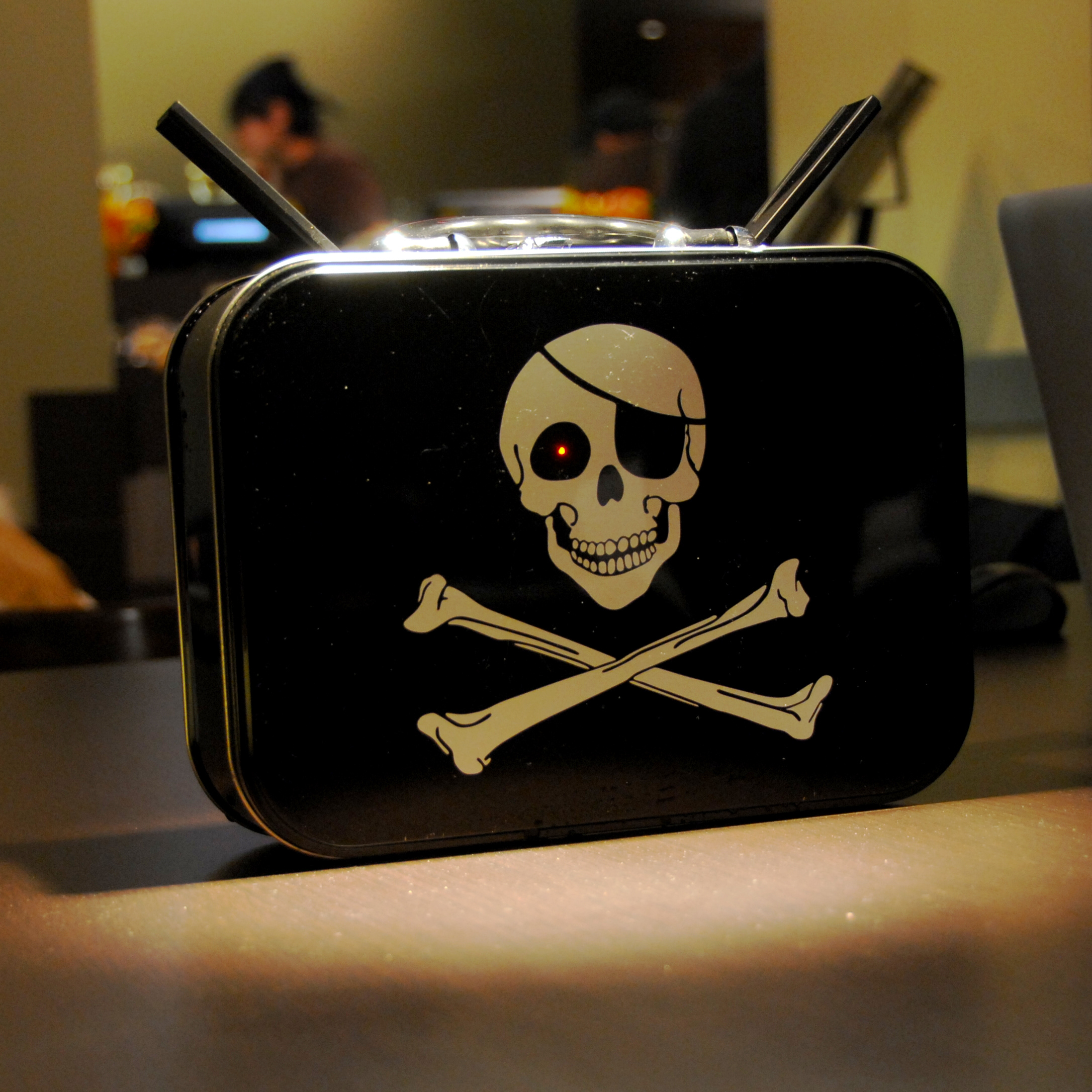
You can build a PirateBox for as little as US$30. Be sure to check out the PirateBox forum for more info and support. And you can read more about the PirateBox project here and here.

Stuff You’ll Need
- TP-Link MR3020 (Newegg) or TP-Link TL-WR703N (DX) (eBay)
- USB Flash Drive (formatted FAT32 with a single partition)
- Ethernet cable
- 5V/USB Battery (optional)
Pre-Installation
The following tutorial was created on a Mac running OSX 10.8. However, these instructions will also work for Linux or Windows (requires PuTTY).
1. First download a custom copy of OpenWrt for the MR3020 (modified by Matthias Strubel to include all needed kernel-modules). See this thread on the forum for more info. For the WR703N, download this OpenWrt firmware
2. Set the toggle switch located beside the LAN/WAN port to WISP mode
3. Turn off your laptop’s wireless (in OSX, click on the wifi icon and select “Turn Wi-Fi Off”)
4. Connect the router via ethernet cable to your computer and open a web browser to http://192.168.0.254 (for the MR3020) or http://192.168.1.1 (for the WR703N)
5. Enter the default username & password (admin & admin)
6. Navigate to System Tools > Firmware Upgrade and select the OpenWRT firmware
(Note: The WR703N firmware text is in Chinese. To flash OpenWrt from the web interface, select the last menu item on the left, and then the third submenu item. More info in this Village Telco post).
7. After the upgrade completes, the system will restart
8. Telnet to the device:
telnet 192.168.1.1
9. Use the passwd command to set your login password – this will enable SSH:
passwd
10. Edit the network file with vi (vi cheat sheet):
NOTE: The following instructions assume your gateway router’s (home router’s) IP address is 192.168.2.1. If your gateway router differs from this, you will need to modify your network file accordingly. Keep in mind that your OpenWrt (PirateBox) router should not have the same address as your gateway router though it will need to be on the same subnet in order to access and download files from the Internet.
vi /etc/config/network
The modified file should look like this:
config interface 'loopback'
option ifname 'lo'
option proto 'static'
option ipaddr '127.0.0.1'
option netmask '255.0.0.0'
config interface 'lan'
option ifname 'eth0'
option type 'bridge'
option proto 'static'
option ipaddr '192.168.2.111'
option netmask '255.255.255.0'
option gateway '192.168.2.1'
list dns '192.168.2.1'
list dns '8.8.8.8'
11. Remove the power from the router.
12. Turn ON your laptop’s wireless (for OSX, click on the wifi icon and select “Turn Wi-Fi On”)
13. Connect the MR3020 (or WR703N) to your gateway router (e.g. your home network router) with an ethernet cable and plug the power back in. Wait a couple of minutes until the router boots up. With your computer connected to your home network, try sshing into the router (Note: use the “ipaddr” you assigned in step 9):
ssh root@192.168.2.111
14. Ping google to ensure your firewall settings are correct:
ping google.com
15. Add USB support to OpenWrt by installing and enabling the following packages (Note: this step is not required if you used the customized OpenWrt image from step 1):
opkg update
opkg install kmod-usb-uhci
insmod usbcore ## may return: file exists
insmod uhci
opkg install kmod-usb-ohci ## may return: up to date.
insmod usb-ohci
Install PirateBox
Next you’ll need to install PirateBox on the router.
1. Connect your USB drive (formatted to FAT32 with only one partition) to the USB port.
2. Install the mkPirateBox package by issuing the following commands.
cd /tmp
opkg update && opkg install http://piratebox.aod-rpg.de/piratebox_0.6.3_all.ipk
3. Optional: Install the Kareha Image Board:
/opt/piratebox/bin/timesave.sh /opt/piratebox/conf/piratebox.conf install
/opt/piratebox/bin/install_piratebox.sh
/opt/piratebox/conf/piratebox.conf imageboard
Afterwards, edit the Kareha image board config file to change the admin username and password (ADMIN_PASS and SECRET):
vi /opt/piratebox/www/board/config.pl
4. Once the install is completed, unplug the ethernet cable and disconnect the power for at least 10 seconds.
5. Restart the device and join the “PirateBox – Share Freely” network. Open any web page and you should be redirected to the PirateBox menu.
6. Begin sharing files and chatting!
Upgrading
To upgrade from an earlier version of PirateBox, check out this tutorial on the PirateBox forum.
Recovery
For the TL-WR703N, use these instructions from the OpenWrt wiki to enter failsafe mode. See also Matthias Strubel’s video demo.
More info about building a serial port (useful for recovering a “bricked” router) for the TL-WR703N on TheVillageTelco wiki.
PirateBox Forum
Please post your questions, discoveries, ideas, and solutions in the PirateBox Forum.